> ## Documentation Index
> Fetch the complete documentation index at: https://docs.reservesense.com/llms.txt
> Use this file to discover all available pages before exploring further.
# Maintenance & Repairs
> How to model maintenance and repair costs for components in Reserve Sense.
Sometimes a component needs repairs or maintenance *before* its full replacement. For example, an asphalt shingle roof with a 22-year lifespan might need \$5,000 in repairs around year 17. Reserve Sense offers three ways to model this, depending on whether the cost is one-time or recurring, and whether you want a separate write-up in your report.
## Method 1: One-Time Expenditure
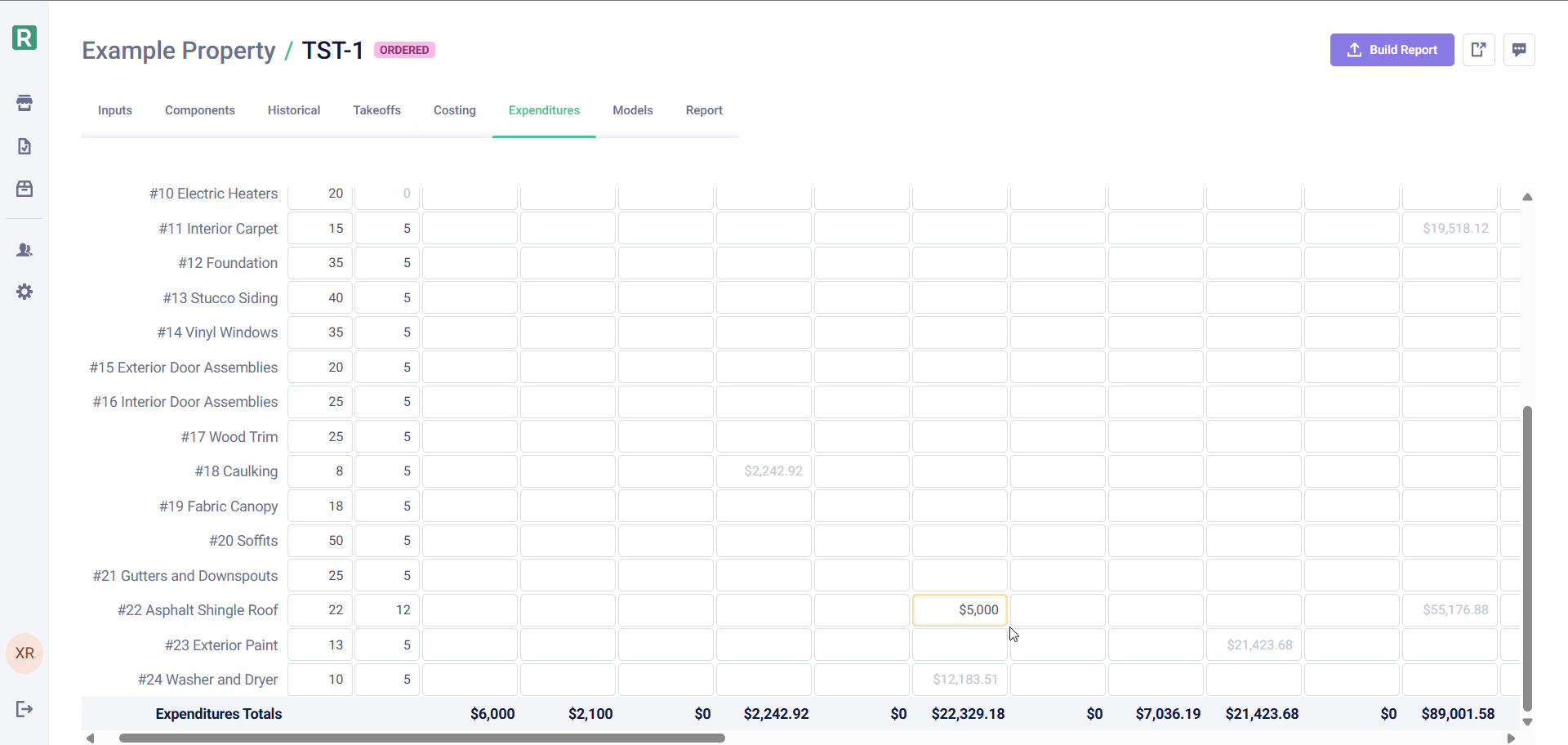
If a repair is truly a one-time cost that won't repeat, you can enter it directly in the **Expenditures** tab.
1. Navigate to the **Expenditures** tab for your report
2. Find the component row
3. Locate the year column where the repair will occur
4. Type the repair cost directly into that cell
This approach is simple, but the cost won't repeat in future replacement cycles. Use this for ad-hoc repairs that are not expected to reoccur.
## Method 2: Separate Repair Component
If repairs should repeat cyclically (e.g., every 22 years, 5 years before each replacement), create a dedicated repair component in your library. This will ensure that the repairs are accounted for on all the subsequent replacements, and it will also require a separate write-up with descriptions and images as it will be treated exactly like a separate component.
### Setting it up
1. In your **Component Library**, create a new component (e.g., "Asphalt Shingle Roof — Repairs")
2. Set the **lifespan to match the parent component** (e.g., 22 years)
3. Set the **effective age** so the repair occurs at the right time (e.g., 17 years)
The repair component's lifespan should match the parent component's lifespan, not the interval until the repair. This ensures both components cycle together. Use the effective age to offset *when* the repair happens within that cycle.
### Example
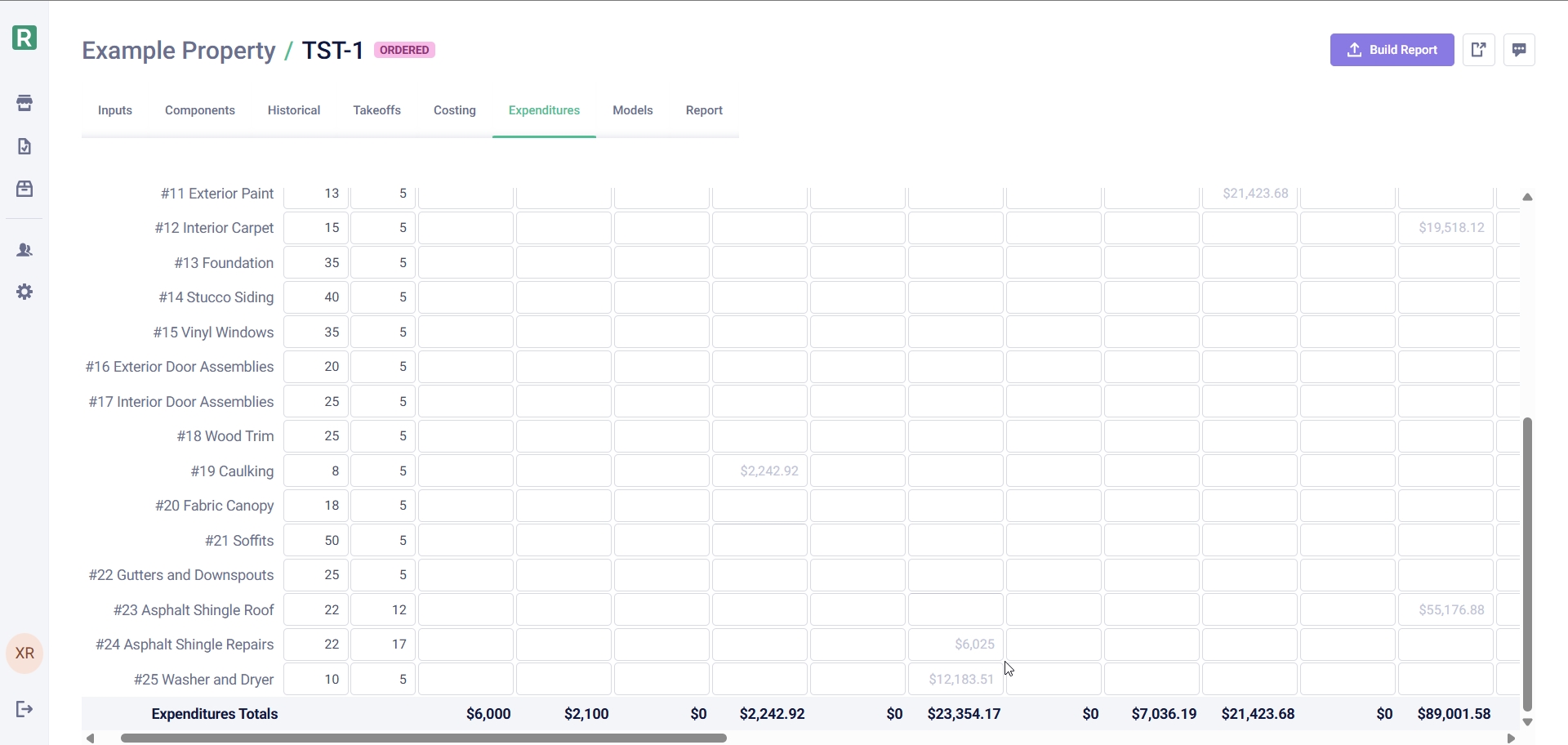
For a roof with a 22-year lifespan that's currently 12 years old, with repairs expected in 5 years:
* Parent component: 22-year lifespan, 12 years effective age → replacement in 10 years
* Repair component: 22-year lifespan, 17 years effective age → repair in 5 years
Both will then repeat on the same 22-year cycle, with repairs always happening 5 years before replacement.
### Adding to a report
1. Go to the **Components** tab
2. Add the repair component from your library
3. Set the effective age appropriately
4. Go to **Costing** and enter the repair cost
Once set up, you'll see the repair costs appear cyclically in the Expenditures tab, repeating alongside each replacement.
## Method 3: Component Stages
If you want cyclical repairs but *don't* want a separate write-up in your report, use **Stages**. Stages let you add multiple cost lines to a single component—the client sees one component description, but the math tracks replacement and repairs separately.
### Setting it up
1. Select your component (e.g., "Asphalt Shingle Roof")
2. In the component details ('Info' tab), add a **Stage**
3. Name the first stage "Replacement"
4. Add a second stage called "Repairs"
5. Set the **effective age** on the repairs stage to offset it appropriately
### Example
For the same 22-year roof that's 12 years old:
| Stage | Effective Age | Result |
| ----------- | ------------- | ----------------------- |
| Replacement | 12 years | Replacement in 10 years |
| Repairs | 17 years | Repairs in 5 years |
### Costing stages
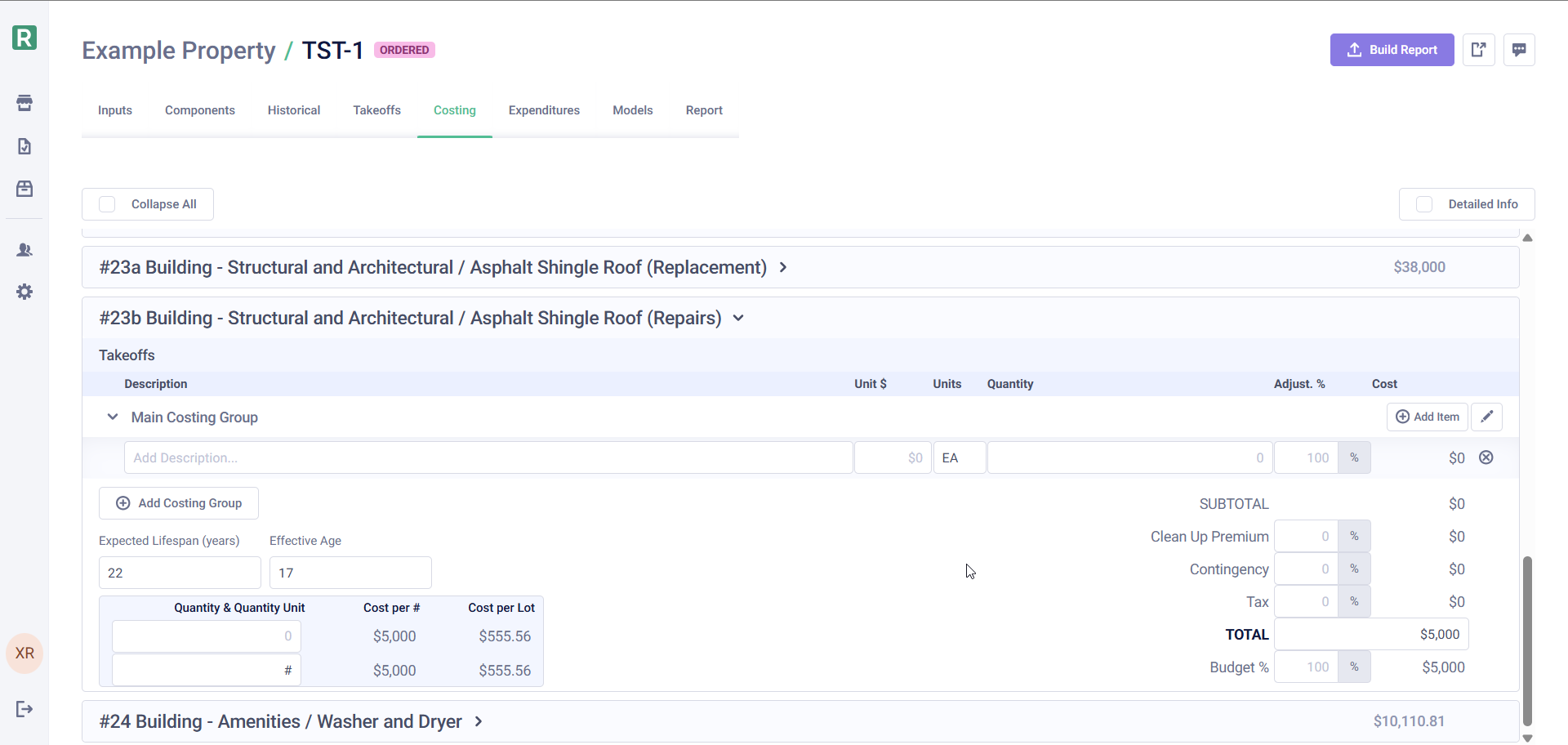
1. Go to the **Costing** tab
2. You'll see a separate costing component for each stage
3. Enter costs for each stage independently
### How stages appear in reports
When you use stages, each stage gets a **letter suffix** added to the component number. For example, if your Asphalt Shingle Roof is component #23:
* The replacement stage appears as **#23a**
* The repairs stage appears as **#23b**
These lettered numbers appear in:
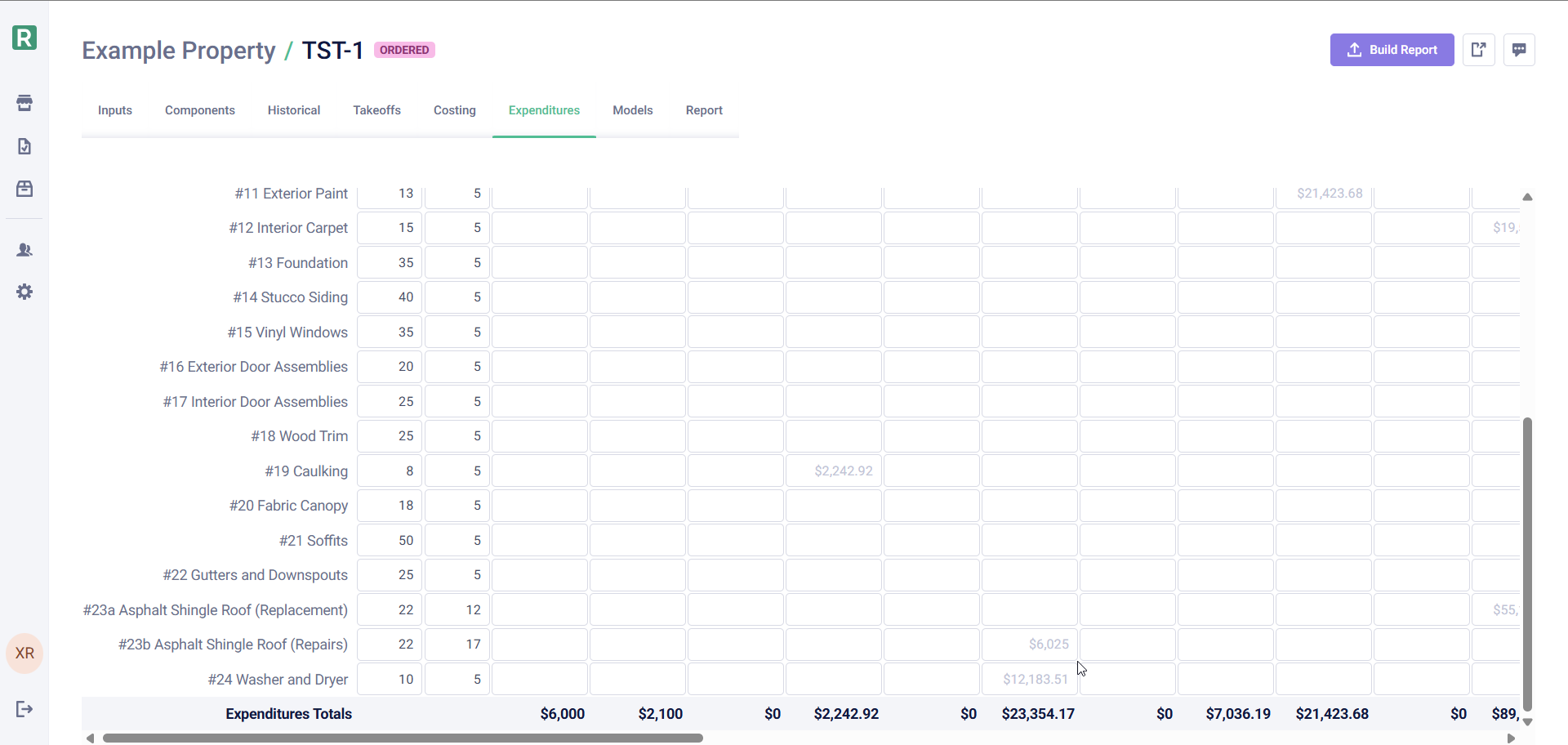
* The Reserve Sense app UI (Expenditures, Costing, Historical tabs)
* PDF report tables: Historical Financial Analysis, Benchmark Analysis, and Expenditure schedules
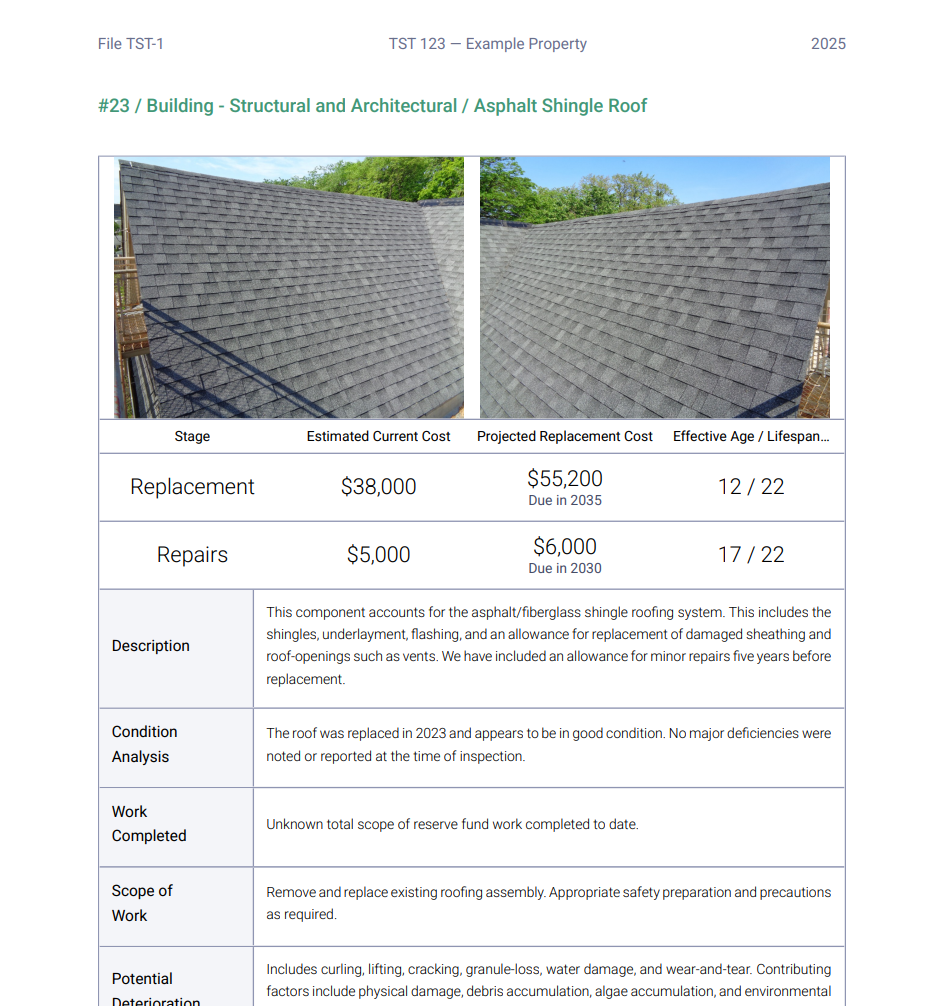
However, in the **Component Descriptions** section of the PDF, stages are *not* listed separately—the whole point is to avoid duplicate write-ups. Instead, the single component description includes the costs and timing for all stages together.
### Benefits of stages
* **One write-up**: The report shows a single component description covering all stages
* **Separate tracking**: Expenditures, historical data, and costing remain separate (with letter suffixes)
* **Cleaner reports**: Clients see one component, not multiple entries for the same thing
## Which Method Should I Use?
| Scenario | Recommended Method |
| -------------------------------------------- | ------------------------- |
| One-time repair, won't repeat | One-time expenditure |
| Recurring repair, needs its own description | Separate repair component |
| Recurring repair, same description as parent | Component stages |
Stages are the most common choice for recurring maintenance because they keep your reports clean while still tracking costs accurately.
 ## Method 2: Separate Repair Component
If repairs should repeat cyclically (e.g., every 22 years, 5 years before each replacement), create a dedicated repair component in your library. This will ensure that the repairs are accounted for on all the subsequent replacements, and it will also require a separate write-up with descriptions and images as it will be treated exactly like a separate component.
### Setting it up
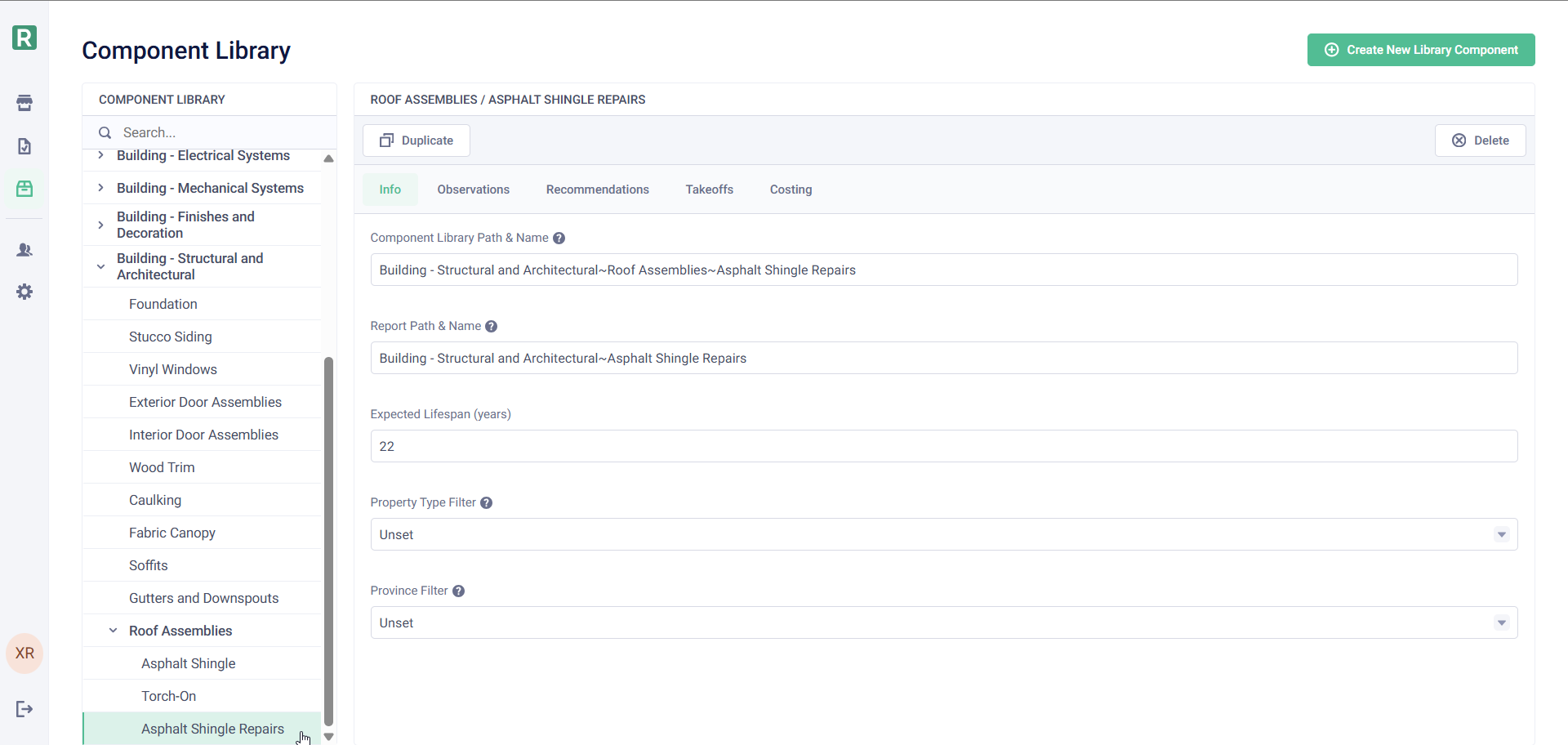
1. In your **Component Library**, create a new component (e.g., "Asphalt Shingle Roof — Repairs")
2. Set the **lifespan to match the parent component** (e.g., 22 years)
3. Set the **effective age** so the repair occurs at the right time (e.g., 17 years)
## Method 2: Separate Repair Component
If repairs should repeat cyclically (e.g., every 22 years, 5 years before each replacement), create a dedicated repair component in your library. This will ensure that the repairs are accounted for on all the subsequent replacements, and it will also require a separate write-up with descriptions and images as it will be treated exactly like a separate component.
### Setting it up
1. In your **Component Library**, create a new component (e.g., "Asphalt Shingle Roof — Repairs")
2. Set the **lifespan to match the parent component** (e.g., 22 years)
3. Set the **effective age** so the repair occurs at the right time (e.g., 17 years)
 ## Method 3: Component Stages
If you want cyclical repairs but *don't* want a separate write-up in your report, use **Stages**. Stages let you add multiple cost lines to a single component—the client sees one component description, but the math tracks replacement and repairs separately.
### Setting it up
1. Select your component (e.g., "Asphalt Shingle Roof")
2. In the component details ('Info' tab), add a **Stage**
3. Name the first stage "Replacement"
4. Add a second stage called "Repairs"
5. Set the **effective age** on the repairs stage to offset it appropriately
## Method 3: Component Stages
If you want cyclical repairs but *don't* want a separate write-up in your report, use **Stages**. Stages let you add multiple cost lines to a single component—the client sees one component description, but the math tracks replacement and repairs separately.
### Setting it up
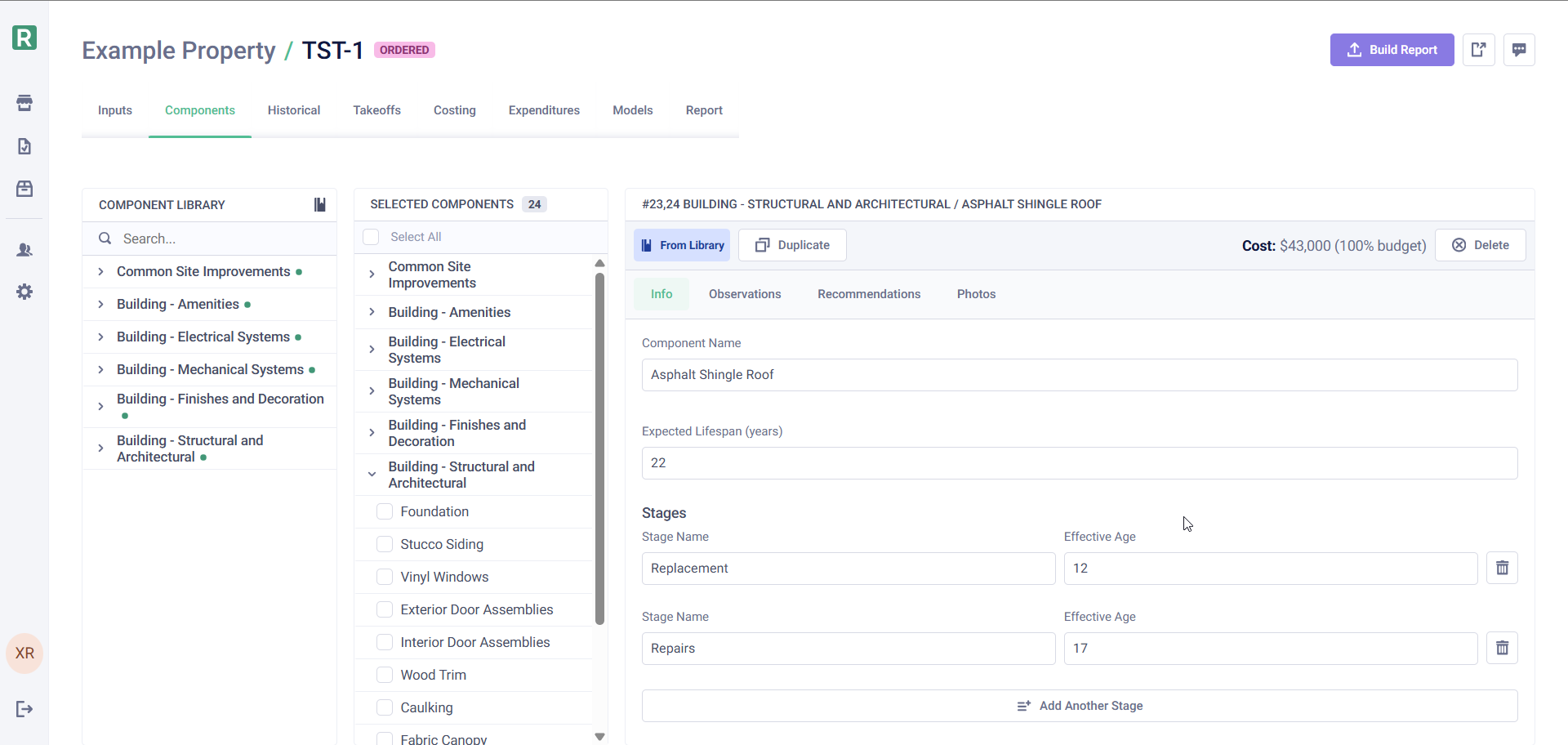
1. Select your component (e.g., "Asphalt Shingle Roof")
2. In the component details ('Info' tab), add a **Stage**
3. Name the first stage "Replacement"
4. Add a second stage called "Repairs"
5. Set the **effective age** on the repairs stage to offset it appropriately
 ### Example
For the same 22-year roof that's 12 years old:
| Stage | Effective Age | Result |
| ----------- | ------------- | ----------------------- |
| Replacement | 12 years | Replacement in 10 years |
| Repairs | 17 years | Repairs in 5 years |
### Costing stages
1. Go to the **Costing** tab
2. You'll see a separate costing component for each stage
3. Enter costs for each stage independently
### Example
For the same 22-year roof that's 12 years old:
| Stage | Effective Age | Result |
| ----------- | ------------- | ----------------------- |
| Replacement | 12 years | Replacement in 10 years |
| Repairs | 17 years | Repairs in 5 years |
### Costing stages
1. Go to the **Costing** tab
2. You'll see a separate costing component for each stage
3. Enter costs for each stage independently
 ### How stages appear in reports
When you use stages, each stage gets a **letter suffix** added to the component number. For example, if your Asphalt Shingle Roof is component #23:
* The replacement stage appears as **#23a**
* The repairs stage appears as **#23b**
These lettered numbers appear in:
* The Reserve Sense app UI (Expenditures, Costing, Historical tabs)
* PDF report tables: Historical Financial Analysis, Benchmark Analysis, and Expenditure schedules
### How stages appear in reports
When you use stages, each stage gets a **letter suffix** added to the component number. For example, if your Asphalt Shingle Roof is component #23:
* The replacement stage appears as **#23a**
* The repairs stage appears as **#23b**
These lettered numbers appear in:
* The Reserve Sense app UI (Expenditures, Costing, Historical tabs)
* PDF report tables: Historical Financial Analysis, Benchmark Analysis, and Expenditure schedules
 However, in the **Component Descriptions** section of the PDF, stages are *not* listed separately—the whole point is to avoid duplicate write-ups. Instead, the single component description includes the costs and timing for all stages together.
 ### Benefits of stages
* **One write-up**: The report shows a single component description covering all stages
* **Separate tracking**: Expenditures, historical data, and costing remain separate (with letter suffixes)
* **Cleaner reports**: Clients see one component, not multiple entries for the same thing
## Which Method Should I Use?
| Scenario | Recommended Method |
| -------------------------------------------- | ------------------------- |
| One-time repair, won't repeat | One-time expenditure |
| Recurring repair, needs its own description | Separate repair component |
| Recurring repair, same description as parent | Component stages |
### Benefits of stages
* **One write-up**: The report shows a single component description covering all stages
* **Separate tracking**: Expenditures, historical data, and costing remain separate (with letter suffixes)
* **Cleaner reports**: Clients see one component, not multiple entries for the same thing
## Which Method Should I Use?
| Scenario | Recommended Method |
| -------------------------------------------- | ------------------------- |
| One-time repair, won't repeat | One-time expenditure |
| Recurring repair, needs its own description | Separate repair component |
| Recurring repair, same description as parent | Component stages |