> ## Documentation Index
> Fetch the complete documentation index at: https://docs.reservesense.com/llms.txt
> Use this file to discover all available pages before exploring further.
# Pages
> Learn how to add pages, choose a page type, and control when and where each page appears in a Reserve Sense report.
Pages are the building blocks of a report. Depending on the page type, a page can contain narrative, a generated table or graph, component details, or other automatically generated content. [Chapters and appendices](/report-templates/chapters-and-appendices) group related pages and organize them in the table of contents.
Make page changes in a non-active testing variant until you are ready to test the complete report. See [Work safely with template variants](/report-templates/overview#work-safely-with-template-variants).
## Add a page
1. Open **Report Templates** and select the variant you want to edit
2. Add a new page and give it a **Title**
3. Choose a **Page Type** (the default is **Standalone**)
4. Configure the page settings described below
5. Enter content in the editor when the page type allows it
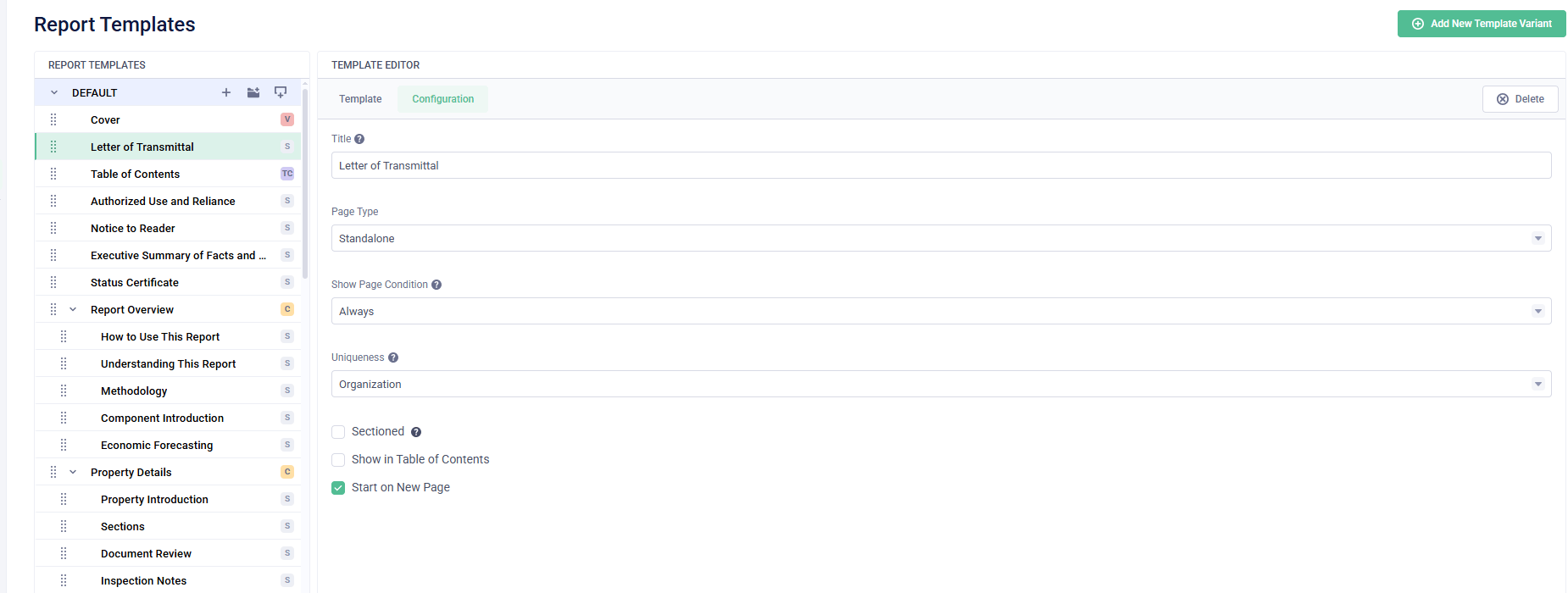
*The Configuration tab controls how a page is generated, customized, and placed in the report.*
## Choose a page type
The page type controls how Reserve Sense creates the page and where its content comes from.
| Page type | What it does |
| --------------------- | ------------------------------------------------------------------------------------------------------------------------------------------------------------------------------------------------------------------------------------- |
| **Standalone** | Free-form editor for narrative and supported embedded content |
| **Cover** | Built-in cover designs. Choose a layout instead of building a cover by hand |
| **Component Details** | Generates a detail page for each component (description, age/lifespan, photographs). A component with a lot of content may span more than one page |
| **Graph** | Places a graph on a dedicated full page |
| **Qualifications** | Generates a page for each signatory using the **Professional Details** they maintain on their Settings page |
| **Table of Contents** | Auto-generated contents. Subtype **Report** lists applicable report pages (grouped by chapter) with page numbers. Subtype **Components** lists every reserve component by property section with the page number of its appendix entry |
| **Table** | Generates a full-page table with no free-form narrative editor. Types include Benchmark Analysis, Cash Flow Summary, Component List, Historical Financial Table, Projected Expenditures, and Projection Schedule |
Use **Standalone** when you want to write and arrange the page content yourself. Choose a specialized page type, such as **Cover**, **Graph**, or **Table**, when Reserve Sense should generate the page from report data or a preset layout.
## Configure the page
The **Configuration** tab controls when the page appears, whether it can be customized for one report, and how it fits into the finished PDF.
### Title
The name of the page as it appears in the template list and, when enabled, in the table of contents.
### Show Page Condition
This setting controls whether the page appears in a given report. **Always** includes it in every report; the other options limit when it appears.
For example, a CUSPAP appendix can use the option “If at least one signatory has ‘AIC’ certification.” If no AIC member is involved, the appendix stays out of the report.
You can select more than one condition. The setting uses OR logic: the page appears when any selected condition is met.
The available options are listed below for reference.
| Category | Condition |
| ----------------------------- | --------------------------------------------------------------------------- |
| Default | **Always** |
| Signatories | If at least one signatory has "AIC" certification |
| Report structure | If the report has more than 1 section |
| Report structure | If at least one building plan is uploaded |
| Report structure | If the report has multiple funding models |
| Dates and report type | If the "End of Life" year is the same as or after the "Effective Date" year |
| Dates and report type | If "Report Type" is "Capital Planning Report" |
| Dates and report type | If "Report Type" is not "Capital Planning Report" |
| Dates and report type | If "Report Type" is "Depreciation Report" or "Reserve Fund Study" |
| Class of Study (Ontario only) | If unset |
| Class of Study (Ontario only) | If "Class 1 — Comprehensive" |
| Class of Study (Ontario only) | If "Class 2 — Updated with Site Inspection" |
| Class of Study (Ontario only) | If "Class 3 — Updated without Site Inspection" |
| Jurisdiction | If the property province is Nova Scotia or Newfoundland and Labrador |
To change wording inside a page, use [conditionals](/report-templates/conditionals) instead.
### Uniqueness
| Value | Meaning |
| ---------------- | ---------------------------------------------------------------------------------------------------------------------------------------------------------------- |
| **Organization** | Content is maintained centrally in the report template. Same for every report that uses that template page, though variables and conditionals may customize this |
| **Report** | The page can be fully customized separately for each report. These pages appear in the report’s editable pages list (for example, Property Introduction) |
Use **Organization** when [variables](/report-templates/variables) and [conditionals](/report-templates/conditionals) can supply the property-specific details. Choose **Report** only when the writer needs to add or revise content for each report. This keeps manual report work focused on pages that genuinely need it.
### Sectioned
When enabled, Reserve Sense generates a separate version of the page for every property section. This is intended for British Columbia stratas with legally distinct sections. You might use it for Reserve Fund History or another analysis that needs separate content for each section. Most pages should leave this unchecked. See [Sectioned reports](/report-templates/sectioned-reports).
### Show in Table of Contents
When enabled, and when a **Table of Contents** page uses the **Report** subtype, the page is listed if it appears in the report.
This setting is enabled by default on new template items. Turn it off for items such as a cover or Letter of Transmittal that should not appear in the contents.
Chapters and appendices also have a **Show in Table of Contents** setting. Turning it off on a chapter or appendix hides the whole group, including its pages, from the Report table of contents.
### Start on New Page
Available on **Standalone** pages. It forces the content to begin on a new PDF page. When disabled, the content continues on the previous PDF page when the preceding item supports a shared page.
A **Cover** page cannot be placed inside a chapter or appendix. A **Table of Contents** page with **Table of Contents Type** set to **Report** must also stay at the top level; a nested Table of Contents can only use **Components**.
## Write page content
Standalone pages have familiar text-editing tools, similar to a word processor. The Reserve Sense menu can insert [variables](/report-templates/variables), [conditionals](/report-templates/conditionals), and the [editor tools](/report-templates/editor-tools) used for links, images, tables, charts, and signatures.
Specialized page types use their own settings to generate some or all of their content.
If you leave a line completely empty in a Standalone page, the PDF preview may collapse that gap. Put a space on blank lines when you need the renderer to preserve them.
## Example: Letter of Transmittal
A typical Letter of Transmittal setup:
| Setting | Value |
| ------------------------- | ------------ |
| Page Type | Standalone |
| Show Page Condition | Always |
| Uniqueness | Organization |
| Sectioned | Off |
| Show in Table of Contents | Off |
| Start on New Page | On |
In the editor, you can use a two-column layout with the property name on the left and the date on the right, followed by the letter body. Add a [Signatures](/report-templates/editor-tools#signatures) block for the assigned signatories.
Because **Uniqueness** is set to **Organization**, [variables](/report-templates/variables) supply the report-specific details without requiring the writer to rewrite the letter for each report.
Next: [Organize pages with chapters and appendices →](/report-templates/chapters-and-appendices)
 *The Configuration tab controls how a page is generated, customized, and placed in the report.*
## Choose a page type
The page type controls how Reserve Sense creates the page and where its content comes from.
| Page type | What it does |
| --------------------- | ------------------------------------------------------------------------------------------------------------------------------------------------------------------------------------------------------------------------------------- |
| **Standalone** | Free-form editor for narrative and supported embedded content |
| **Cover** | Built-in cover designs. Choose a layout instead of building a cover by hand |
| **Component Details** | Generates a detail page for each component (description, age/lifespan, photographs). A component with a lot of content may span more than one page |
| **Graph** | Places a graph on a dedicated full page |
| **Qualifications** | Generates a page for each signatory using the **Professional Details** they maintain on their Settings page |
| **Table of Contents** | Auto-generated contents. Subtype **Report** lists applicable report pages (grouped by chapter) with page numbers. Subtype **Components** lists every reserve component by property section with the page number of its appendix entry |
| **Table** | Generates a full-page table with no free-form narrative editor. Types include Benchmark Analysis, Cash Flow Summary, Component List, Historical Financial Table, Projected Expenditures, and Projection Schedule |
Use **Standalone** when you want to write and arrange the page content yourself. Choose a specialized page type, such as **Cover**, **Graph**, or **Table**, when Reserve Sense should generate the page from report data or a preset layout.
## Configure the page
The **Configuration** tab controls when the page appears, whether it can be customized for one report, and how it fits into the finished PDF.
### Title
The name of the page as it appears in the template list and, when enabled, in the table of contents.
### Show Page Condition
This setting controls whether the page appears in a given report. **Always** includes it in every report; the other options limit when it appears.
For example, a CUSPAP appendix can use the option “If at least one signatory has ‘AIC’ certification.” If no AIC member is involved, the appendix stays out of the report.
You can select more than one condition. The setting uses OR logic: the page appears when any selected condition is met.
The available options are listed below for reference.
| Category | Condition |
| ----------------------------- | --------------------------------------------------------------------------- |
| Default | **Always** |
| Signatories | If at least one signatory has "AIC" certification |
| Report structure | If the report has more than 1 section |
| Report structure | If at least one building plan is uploaded |
| Report structure | If the report has multiple funding models |
| Dates and report type | If the "End of Life" year is the same as or after the "Effective Date" year |
| Dates and report type | If "Report Type" is "Capital Planning Report" |
| Dates and report type | If "Report Type" is not "Capital Planning Report" |
| Dates and report type | If "Report Type" is "Depreciation Report" or "Reserve Fund Study" |
| Class of Study (Ontario only) | If unset |
| Class of Study (Ontario only) | If "Class 1 — Comprehensive" |
| Class of Study (Ontario only) | If "Class 2 — Updated with Site Inspection" |
| Class of Study (Ontario only) | If "Class 3 — Updated without Site Inspection" |
| Jurisdiction | If the property province is Nova Scotia or Newfoundland and Labrador |
To change wording inside a page, use [conditionals](/report-templates/conditionals) instead.
### Uniqueness
| Value | Meaning |
| ---------------- | ---------------------------------------------------------------------------------------------------------------------------------------------------------------- |
| **Organization** | Content is maintained centrally in the report template. Same for every report that uses that template page, though variables and conditionals may customize this |
| **Report** | The page can be fully customized separately for each report. These pages appear in the report’s editable pages list (for example, Property Introduction) |
Use **Organization** when [variables](/report-templates/variables) and [conditionals](/report-templates/conditionals) can supply the property-specific details. Choose **Report** only when the writer needs to add or revise content for each report. This keeps manual report work focused on pages that genuinely need it.
### Sectioned
When enabled, Reserve Sense generates a separate version of the page for every property section. This is intended for British Columbia stratas with legally distinct sections. You might use it for Reserve Fund History or another analysis that needs separate content for each section. Most pages should leave this unchecked. See [Sectioned reports](/report-templates/sectioned-reports).
### Show in Table of Contents
When enabled, and when a **Table of Contents** page uses the **Report** subtype, the page is listed if it appears in the report.
This setting is enabled by default on new template items. Turn it off for items such as a cover or Letter of Transmittal that should not appear in the contents.
Chapters and appendices also have a **Show in Table of Contents** setting. Turning it off on a chapter or appendix hides the whole group, including its pages, from the Report table of contents.
### Start on New Page
Available on **Standalone** pages. It forces the content to begin on a new PDF page. When disabled, the content continues on the previous PDF page when the preceding item supports a shared page.
*The Configuration tab controls how a page is generated, customized, and placed in the report.*
## Choose a page type
The page type controls how Reserve Sense creates the page and where its content comes from.
| Page type | What it does |
| --------------------- | ------------------------------------------------------------------------------------------------------------------------------------------------------------------------------------------------------------------------------------- |
| **Standalone** | Free-form editor for narrative and supported embedded content |
| **Cover** | Built-in cover designs. Choose a layout instead of building a cover by hand |
| **Component Details** | Generates a detail page for each component (description, age/lifespan, photographs). A component with a lot of content may span more than one page |
| **Graph** | Places a graph on a dedicated full page |
| **Qualifications** | Generates a page for each signatory using the **Professional Details** they maintain on their Settings page |
| **Table of Contents** | Auto-generated contents. Subtype **Report** lists applicable report pages (grouped by chapter) with page numbers. Subtype **Components** lists every reserve component by property section with the page number of its appendix entry |
| **Table** | Generates a full-page table with no free-form narrative editor. Types include Benchmark Analysis, Cash Flow Summary, Component List, Historical Financial Table, Projected Expenditures, and Projection Schedule |
Use **Standalone** when you want to write and arrange the page content yourself. Choose a specialized page type, such as **Cover**, **Graph**, or **Table**, when Reserve Sense should generate the page from report data or a preset layout.
## Configure the page
The **Configuration** tab controls when the page appears, whether it can be customized for one report, and how it fits into the finished PDF.
### Title
The name of the page as it appears in the template list and, when enabled, in the table of contents.
### Show Page Condition
This setting controls whether the page appears in a given report. **Always** includes it in every report; the other options limit when it appears.
For example, a CUSPAP appendix can use the option “If at least one signatory has ‘AIC’ certification.” If no AIC member is involved, the appendix stays out of the report.
You can select more than one condition. The setting uses OR logic: the page appears when any selected condition is met.
The available options are listed below for reference.
| Category | Condition |
| ----------------------------- | --------------------------------------------------------------------------- |
| Default | **Always** |
| Signatories | If at least one signatory has "AIC" certification |
| Report structure | If the report has more than 1 section |
| Report structure | If at least one building plan is uploaded |
| Report structure | If the report has multiple funding models |
| Dates and report type | If the "End of Life" year is the same as or after the "Effective Date" year |
| Dates and report type | If "Report Type" is "Capital Planning Report" |
| Dates and report type | If "Report Type" is not "Capital Planning Report" |
| Dates and report type | If "Report Type" is "Depreciation Report" or "Reserve Fund Study" |
| Class of Study (Ontario only) | If unset |
| Class of Study (Ontario only) | If "Class 1 — Comprehensive" |
| Class of Study (Ontario only) | If "Class 2 — Updated with Site Inspection" |
| Class of Study (Ontario only) | If "Class 3 — Updated without Site Inspection" |
| Jurisdiction | If the property province is Nova Scotia or Newfoundland and Labrador |
To change wording inside a page, use [conditionals](/report-templates/conditionals) instead.
### Uniqueness
| Value | Meaning |
| ---------------- | ---------------------------------------------------------------------------------------------------------------------------------------------------------------- |
| **Organization** | Content is maintained centrally in the report template. Same for every report that uses that template page, though variables and conditionals may customize this |
| **Report** | The page can be fully customized separately for each report. These pages appear in the report’s editable pages list (for example, Property Introduction) |
Use **Organization** when [variables](/report-templates/variables) and [conditionals](/report-templates/conditionals) can supply the property-specific details. Choose **Report** only when the writer needs to add or revise content for each report. This keeps manual report work focused on pages that genuinely need it.
### Sectioned
When enabled, Reserve Sense generates a separate version of the page for every property section. This is intended for British Columbia stratas with legally distinct sections. You might use it for Reserve Fund History or another analysis that needs separate content for each section. Most pages should leave this unchecked. See [Sectioned reports](/report-templates/sectioned-reports).
### Show in Table of Contents
When enabled, and when a **Table of Contents** page uses the **Report** subtype, the page is listed if it appears in the report.
This setting is enabled by default on new template items. Turn it off for items such as a cover or Letter of Transmittal that should not appear in the contents.
Chapters and appendices also have a **Show in Table of Contents** setting. Turning it off on a chapter or appendix hides the whole group, including its pages, from the Report table of contents.
### Start on New Page
Available on **Standalone** pages. It forces the content to begin on a new PDF page. When disabled, the content continues on the previous PDF page when the preceding item supports a shared page.