

Sometimes a component needs repairs or maintenance before its full replacement. For example, an asphalt shingle roof with a 22-year lifespan might need $5,000 in repairs around year 17. Reserve Sense offers three ways to model this, depending on whether the cost is one-time or recurring, and whether you want a separate write-up in your report.
Method 1: One-Time Expenditure
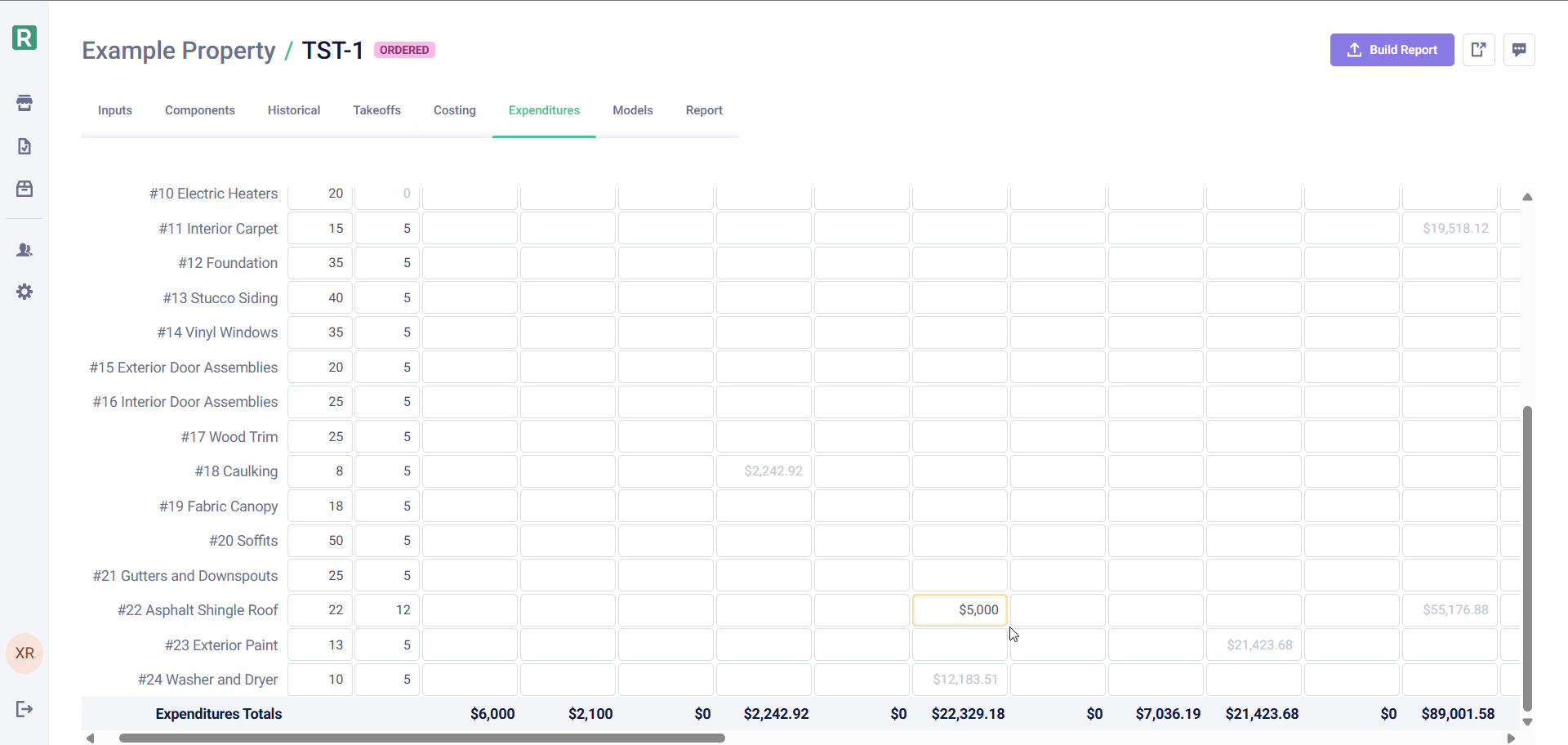
If a repair is truly a one-time cost that won’t repeat, you can enter it directly in the Expenditures tab.- Navigate to the Expenditures tab for your report
- Find the component row
- Locate the year column where the repair will occur
- Type the repair cost directly into that cell
Method 2: Separate Repair Component
If repairs should repeat cyclically (e.g., every 22 years, 5 years before each replacement), create a dedicated repair component in your library. This will ensure that the repairs are accounted for on all the subsequent replacements, and it will also require a separate write-up with descriptions and images as it will be treated exactly like a separate component.Setting it up
- In your Component Library, create a new component (e.g., “Asphalt Shingle Roof — Repairs”)
- Set the lifespan to match the parent component (e.g., 22 years)
- Set the effective age so the repair occurs at the right time (e.g., 17 years)
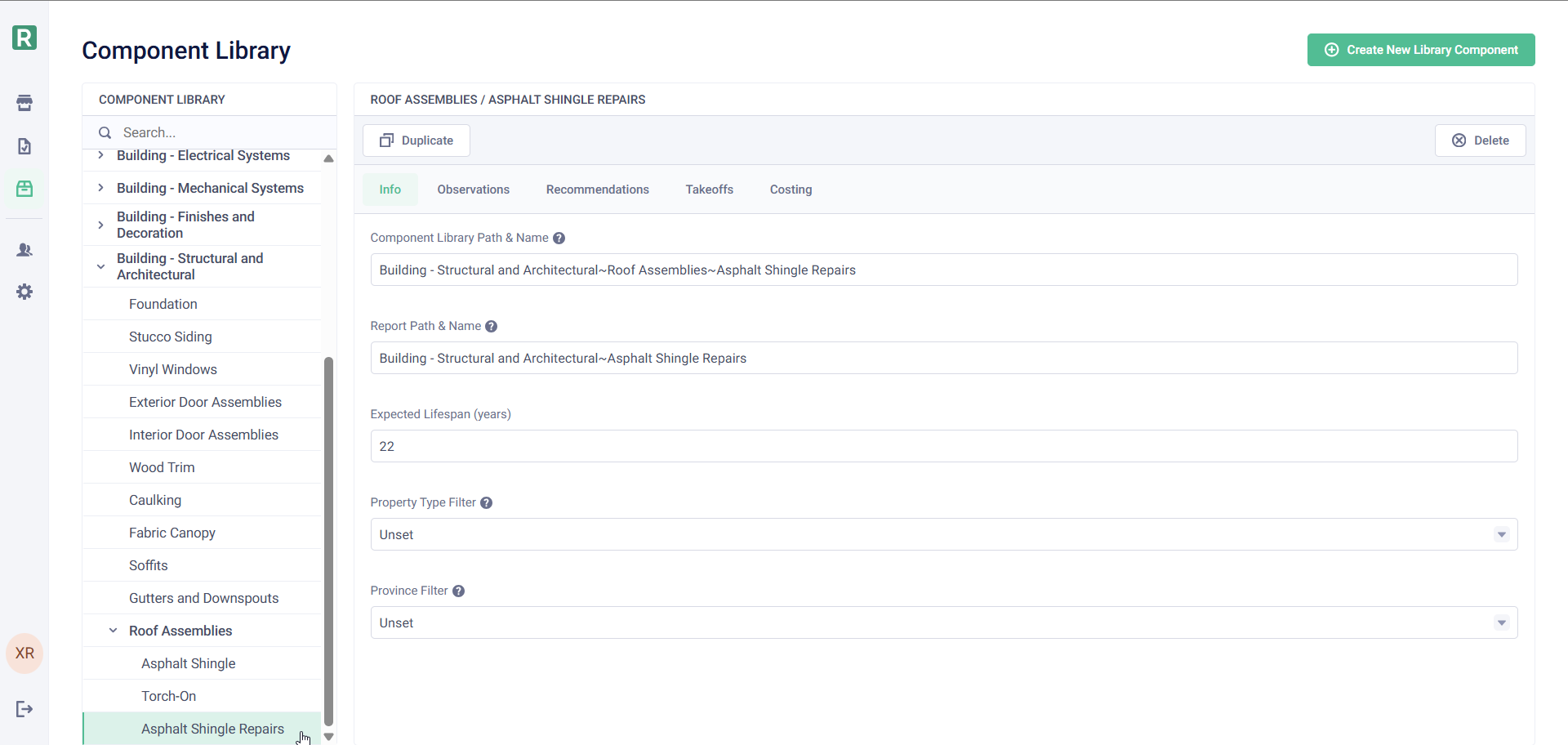
The repair component’s lifespan should match the parent component’s lifespan, not the interval until the repair. This ensures both components cycle together. Use the effective age to offset when the repair happens within that cycle.
Example
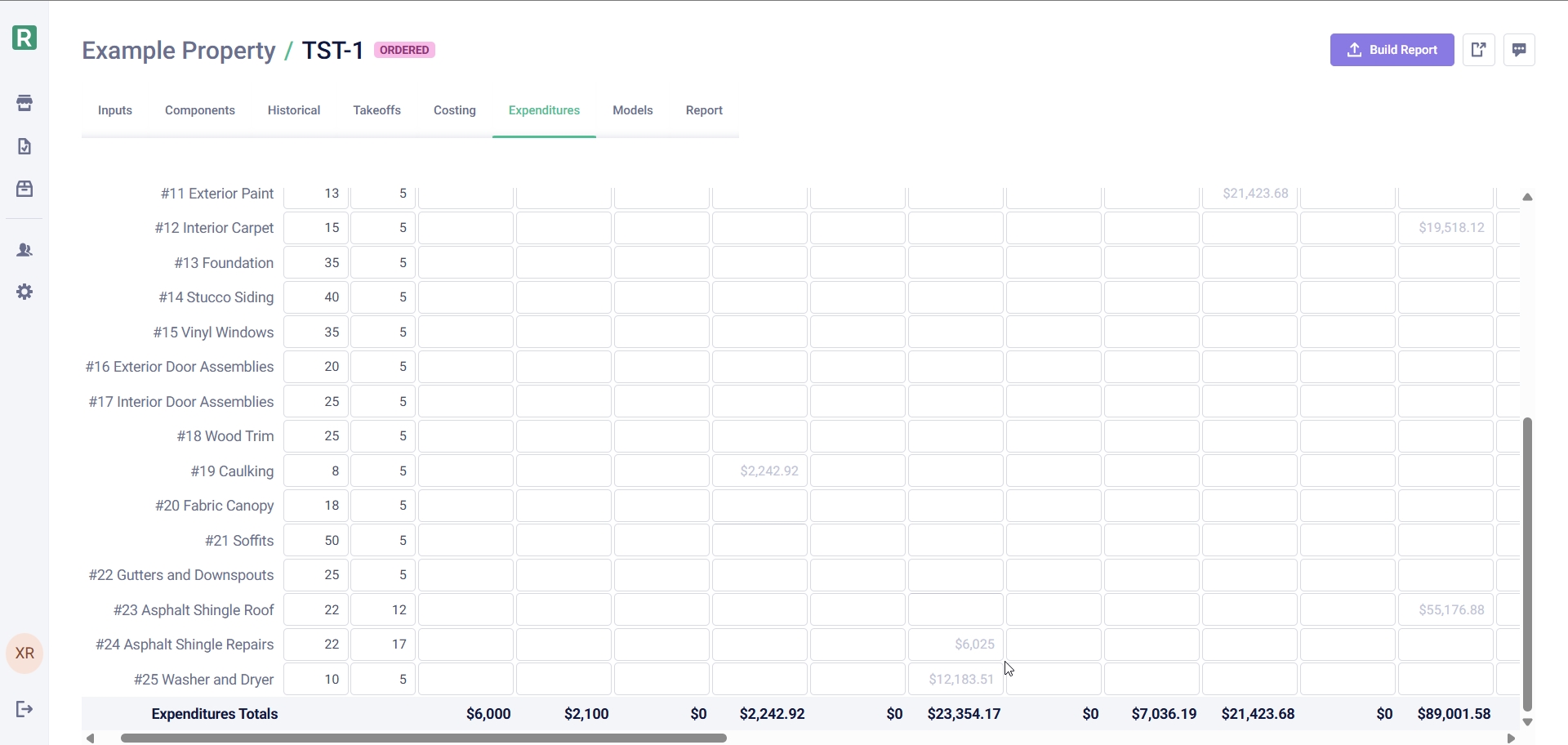
For a roof with a 22-year lifespan that’s currently 12 years old, with repairs expected in 5 years:- Parent component: 22-year lifespan, 12 years effective age → replacement in 10 years
- Repair component: 22-year lifespan, 17 years effective age → repair in 5 years
Adding to a report
- Go to the Components tab
- Add the repair component from your library
- Set the effective age appropriately
- Go to Costing and enter the repair cost
Method 3: Component Stages
If you want cyclical repairs but don’t want a separate write-up in your report, use Stages. Stages let you add multiple cost lines to a single component—the client sees one component description, but the math tracks replacement and repairs separately.Setting it up
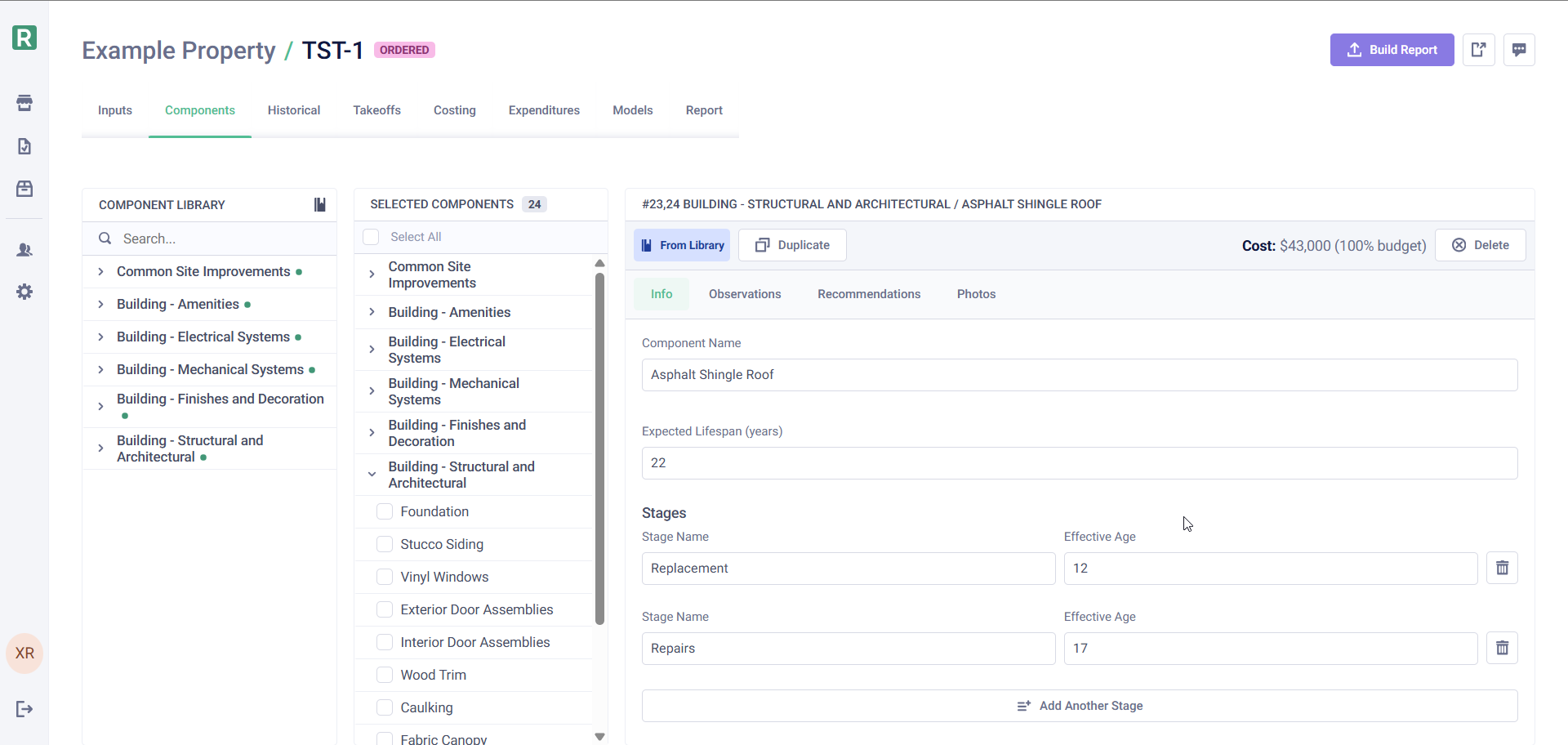
- Select your component (e.g., “Asphalt Shingle Roof”)
- In the component details (‘Info’ tab), add a Stage
- Name the first stage “Replacement”
- Add a second stage called “Repairs”
- Set the effective age on the repairs stage to offset it appropriately
Example
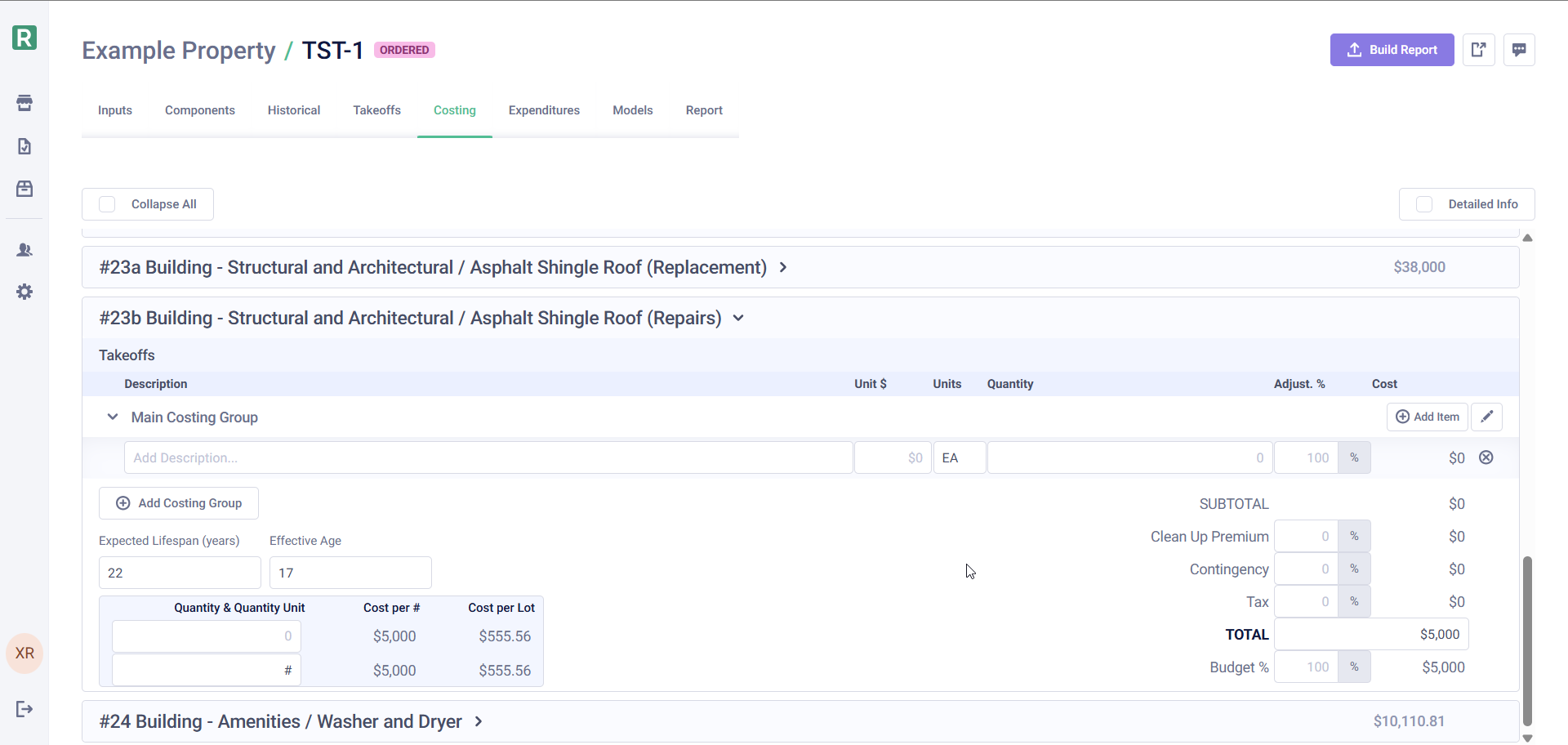
For the same 22-year roof that’s 12 years old:Costing stages
- Go to the Costing tab
- You’ll see a separate costing component for each stage
- Enter costs for each stage independently
How stages appear in reports
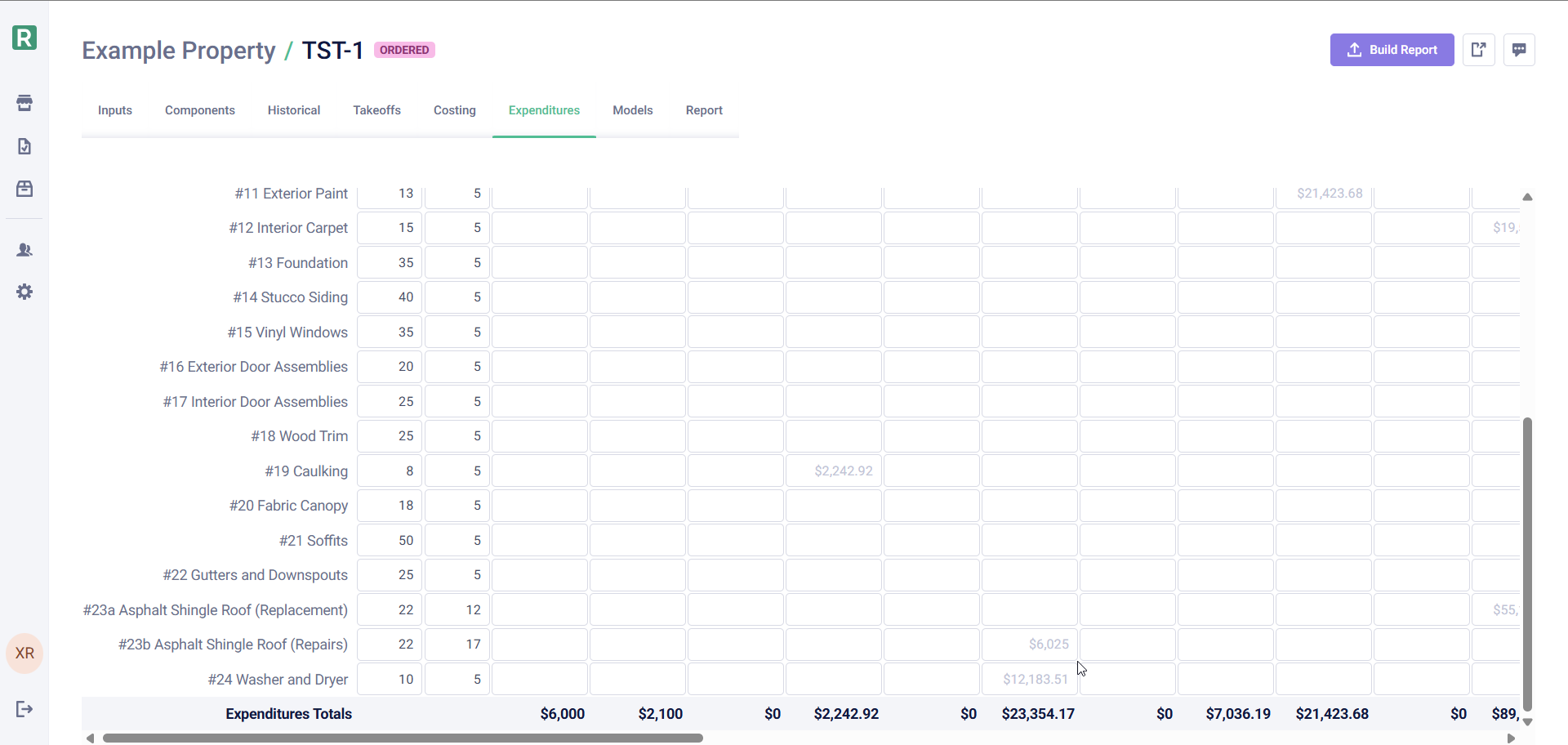
When you use stages, each stage gets a letter suffix added to the component number. For example, if your Asphalt Shingle Roof is component #23:- The replacement stage appears as #23a
- The repairs stage appears as #23b
- The Reserve Sense app UI (Expenditures, Costing, Historical tabs)
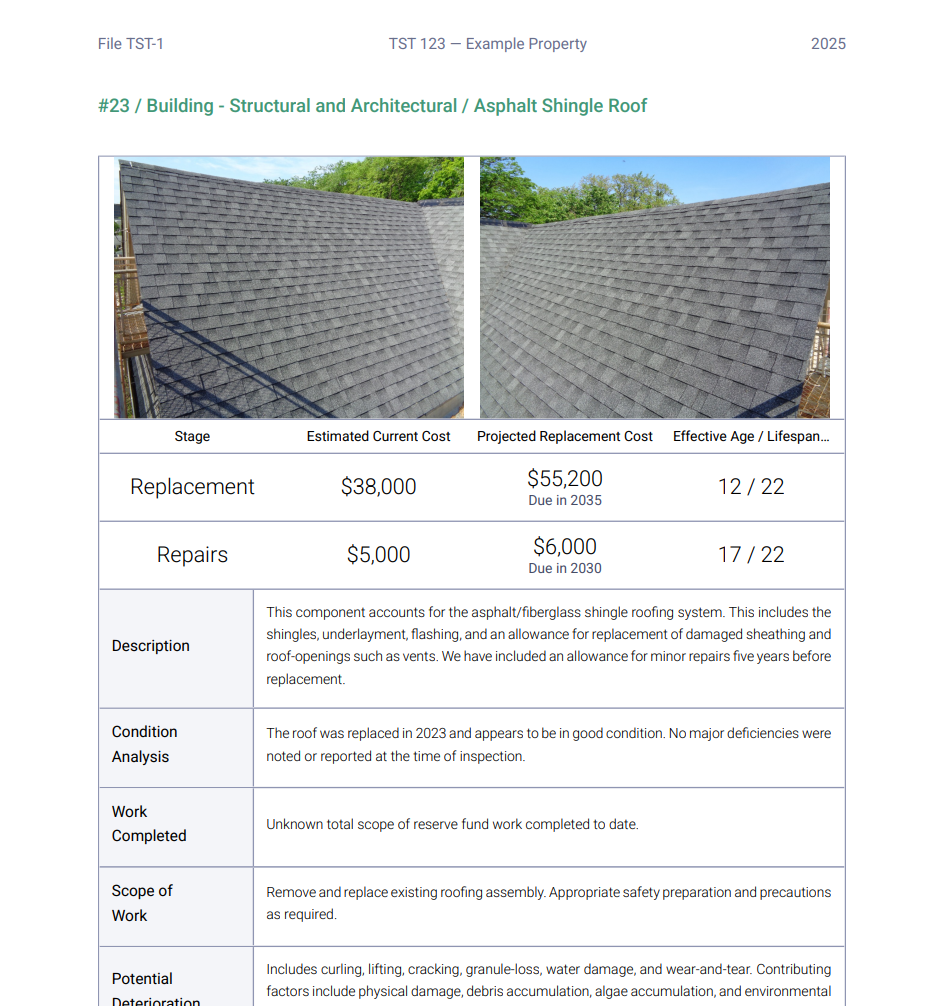
- PDF report tables: Historical Financial Analysis, Benchmark Analysis, and Expenditure schedules
Benefits of stages
- One write-up: The report shows a single component description covering all stages
- Separate tracking: Expenditures, historical data, and costing remain separate (with letter suffixes)
- Cleaner reports: Clients see one component, not multiple entries for the same thing
Which Method Should I Use?
Stages are the most common choice for recurring maintenance because they keep your reports clean while still tracking costs accurately.