

Chapters and appendices group related pages so they read as one part of the report. They also organize the template list and table of contents.
Why group pages
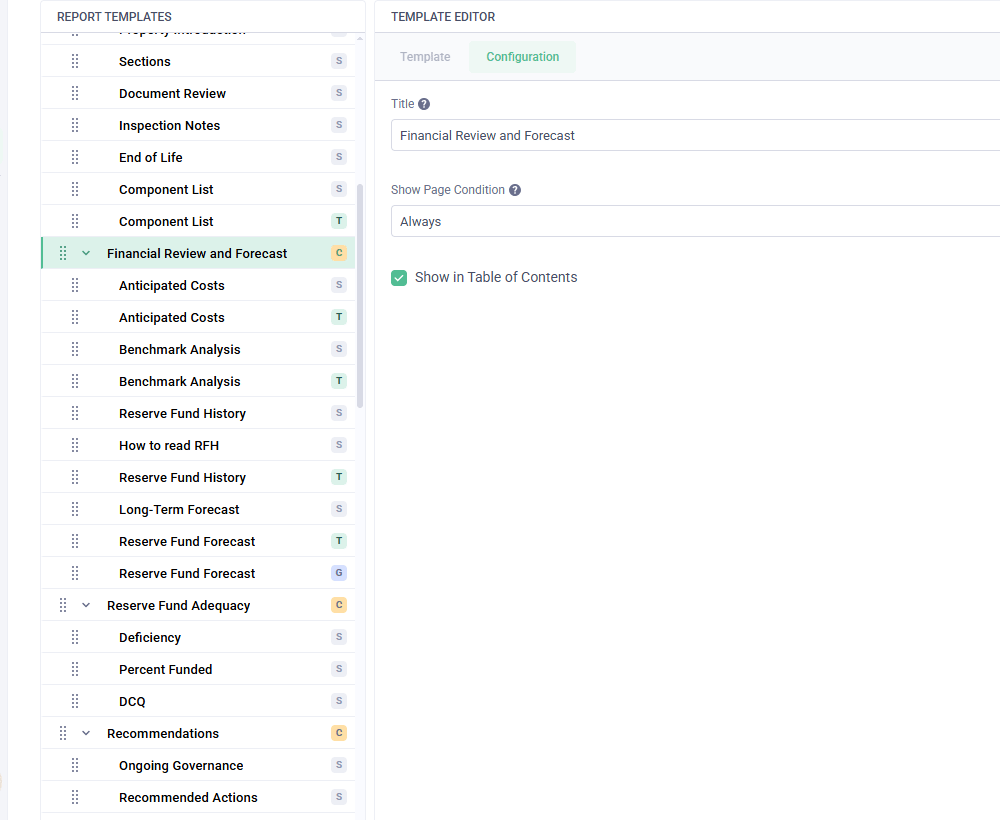
A single part of a report can use several page types. For example, Financial Review and Forecast might contain a Standalone introduction, a Projection Schedule table, and a Graph. Grouping them makes one organized section instead of several unrelated top-level pages. Grouping also prevents a long report from becoming an undivided list of pages in the table of contents.Create a chapter or appendix
- On the template variant row, choose Add New Chapter or Add New Appendix
- Enter its title and configure its visibility settings
- Drag pages onto the container or position them underneath it. Indentation confirms which pages belong to the group
Choose a chapter or appendix
Both are containers for pages. Neither has an editable page body of its own.Chapters
A chapter receives a section number in the table of contents. Pages inside it receive subsection numbers when Show in Table of Contents is enabled on those pages. The chapter does not create a separate page in the body of the PDF. The first page assigned to it begins the section.Appendices
Appendix numbering starts separately from the chapter sequence: Appendix A, Appendix B, and so on. Reserve Sense creates a cover page at the beginning of each appendix. The pages assigned to the appendix follow that cover.Control the whole group
Chapters and appendices have their own Show Page Condition and Show in Table of Contents settings. A condition on the chapter or appendix controls whether the entire group appears in the report. Turning off Show in Table of Contents on the container hides the group and all its pages from the contents, but the pages remain in the report. A nested page can have Show in Table of Contents turned off while its chapter or appendix remains visible. In that case, the contents show the chapter or appendix heading but not the page beneath it.Link to another part of the report
Use PDF Link from the Reserve Sense menu to link to a chapter, appendix, or page. Table-of-contents visibility does not affect these links. A chapter, appendix, or page can still be a link target when its Show in Table of Contents setting is off, provided the content appears in the report. See PDF Links for insertion steps, display options, and an example of automatic section numbering.Example: Financial Review and Forecast
- Add a chapter and title it “Financial Review and Forecast”
- Add a Standalone introduction, a Table page using Projection Schedule, and a Graph page
- Turn on Show in Table of Contents for the chapter
- Turn on Show in Table of Contents only for the pages you want listed as subsections