

Variables insert information already stored in Reserve Sense into template text. This includes property details, dates, funding model results, and organization information. When a report is built, Reserve Sense replaces each variable with the value for that report, so the template does not need to be rewritten.
Insert a variable
Place the cursor where the value should appear. Open the Reserve Sense menu using the R button in the editor toolbar, then choose Report Variable.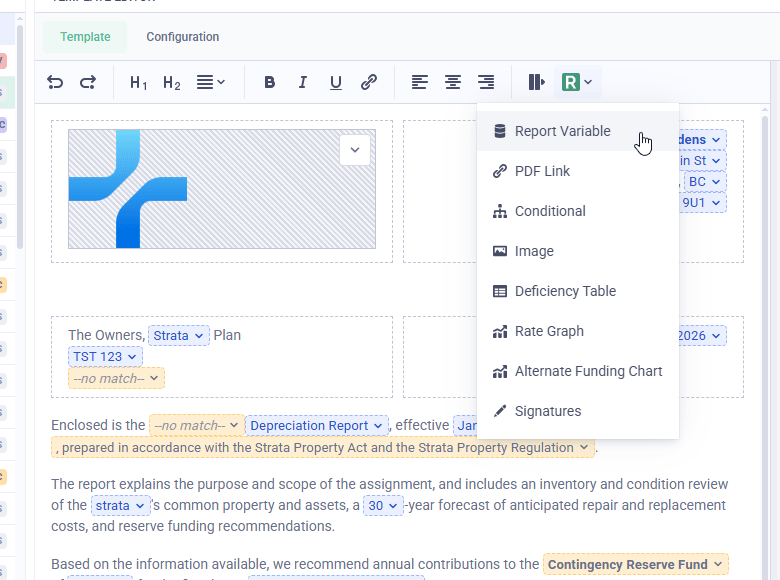
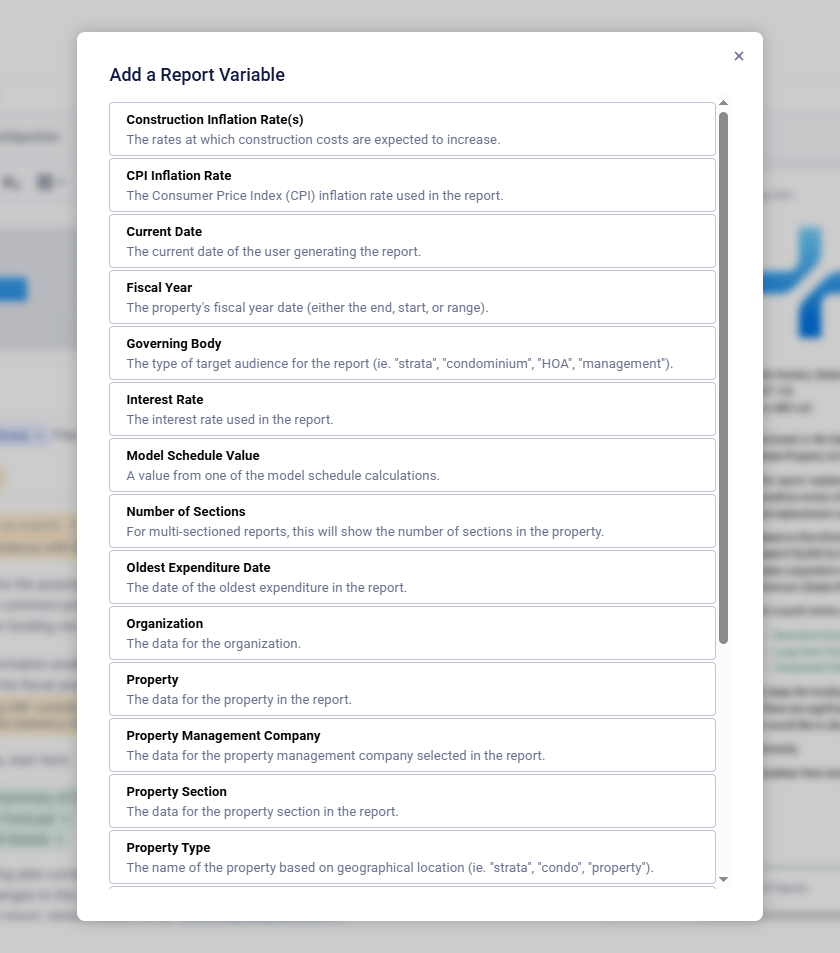
Configure and format a variable
An inserted variable appears as a blue control in the editor. Open its dropdown to change its options or remove it. The available options depend on the variable. For example:- Current Date lets you choose a date format and year offset
- Property lets you choose a property field, such as its name or address
- Model Schedule Value lets you choose a funding-model value and year
Example: Build a recommendation sentence
Combining Model Schedule Value and Fiscal Year can produce a sentence such as:
We recommend you contribute $6,000 in the August 2025–July 2026 fiscal year, which represents an average of $9 per month per unit more than the previous year.Reserve Sense inserts the contribution, fiscal-year range, and monthly increase for the report being built.
Variable reference
The table lists the top-level choices in Add a Report Variable. Selecting one opens its available fields and formatting options.
Use conditionals when more than a single term needs to change, such as a full sentence or paragraph that differs by province.
If you need data that is not available as a variable, contact us.
Next: Change wording automatically with conditionals →