

The Reserve Sense menu adds report data, navigation, images, tables, charts, and signatures to template pages. Variables and conditionals have their own guides; this page covers the other tools in the menu.
Open the Reserve Sense menu
Select the R button in the editor toolbar to see the available insertions.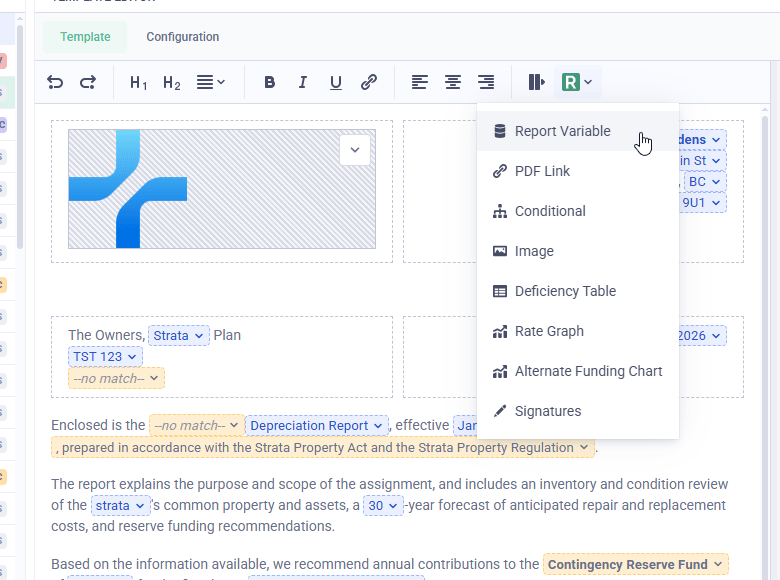
PDF links
A PDF Link points to another page, chapter, or appendix in the same report. Reserve Sense determines the current section number when the report is built, so the reference remains correct when conditional pages change the numbering. For example, Scope of Work might be Section 1.3 in one report and Section 1.2 in another. A PDF Link updates the displayed section number and gives the reader a clickable link to the correct page.- Place the cursor where the reference should appear
- Choose PDF Link from the Reserve Sense menu
- Select the destination page, chapter, or appendix
- Open the inserted link’s dropdown and choose a Display as option:
- Chapter/Section name displays the current section reference
- Page name displays the title of the destination
Images
Choose Image to insert an image associated with the report or your organization.
Report images change with the report being built. For example, a Cover Photo insertion displays the cover photo for the current property. When more than one applicable report image is available, Reserve Sense can include all matching images.
Organization administrators can configure the logo images in the Organization settings. Access to those settings depends on your permissions.
Deficiency tables
Choose Deficiency Table to place a calculated table within a narrative page. The table uses the report’s styles and updates from the current funding-model calculations.
For reports with property sections, Percent Funded and DCQ Analysis can use Auto for the current property section or All for every property section. Deficiency Calculation displays all property sections. See Sectioned reports for more about section-specific content.
Rate graphs
Rate Graphs display historical information for the rates used in a report. They are often placed in an appendix alongside narrative and variables describing the selected rate. Choose Rate Graph, then select:
The Reserve Sense Standard Template includes examples in its Interest Rates, Construction Cost Inflation, and Consumer Price Index material.
Alternate funding charts
Choose Alternate Funding Chart to compare the funding models in a report with the Ideal Contributions benchmark.
The chart adds a line for each active funding model and displays Ideal Contributions as a dotted benchmark.
Signatures
Choose Signatures to insert a signature block. Its dropdown provides the following settings:- Signatures includes everyone assigned to sign the report
- Only Inspectors includes only users marked as inspectors in the report
- Show Credentials optionally adds each user’s professional credentials
- Show Line draws the signature line above each name. Turn it off to leave the name without that line. Each line is at most half the width of the signature block.