

Conditionals choose which template text appears based on the report’s data. They can omit wording that does not apply or select the right wording for a province, report type, study class, or property detail.
In the editor, conditionals appear as yellow blocks. The finished PDF contains only the wording selected for that report.
Add a conditional
Place the cursor where the conditional wording should appear. Open the Reserve Sense menu from the R button in the editor toolbar and choose Conditional.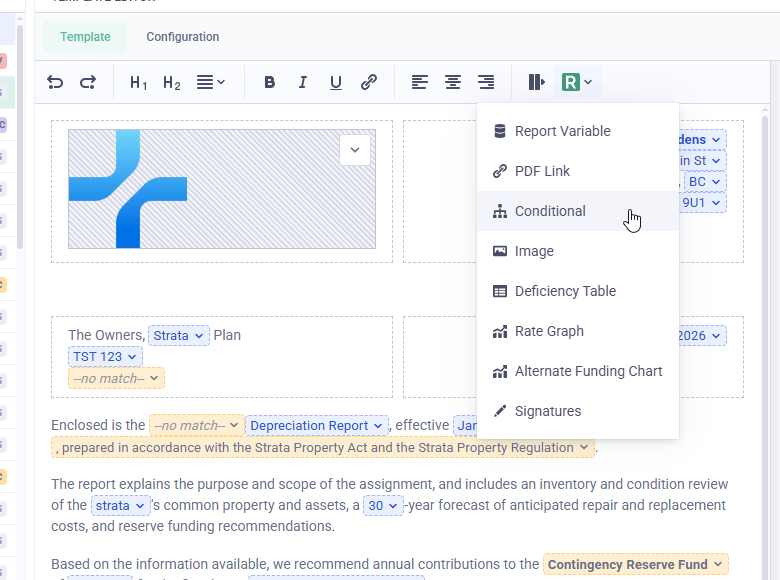
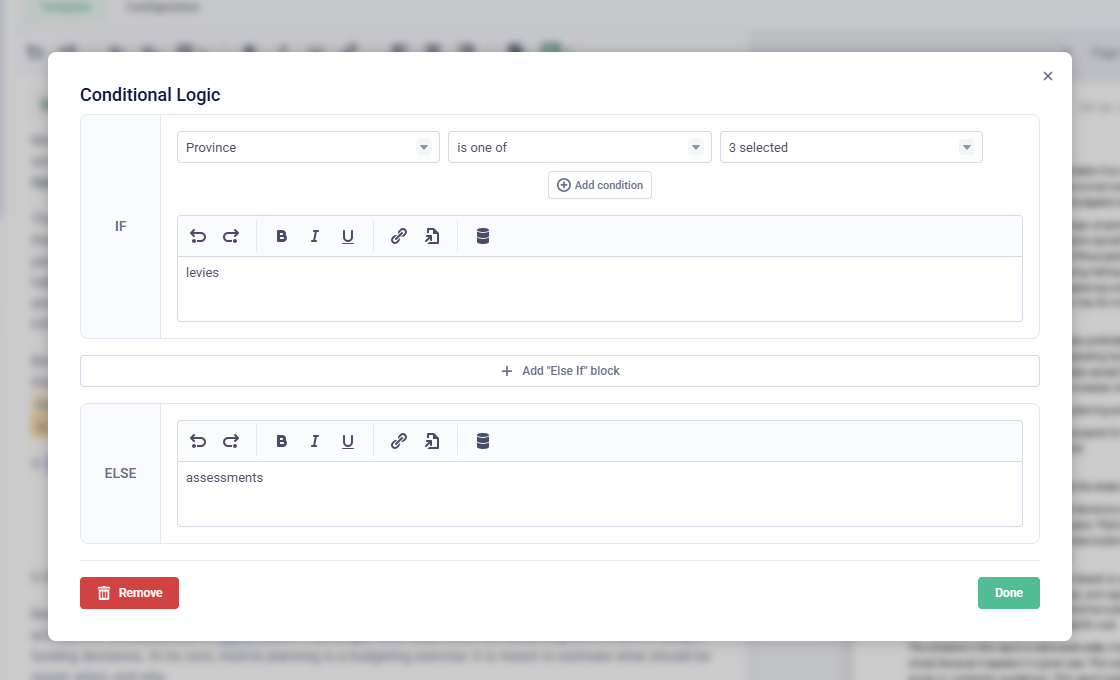
How Reserve Sense selects a branch
Reserve Sense checks If first, then each Else If in order. Else is used only when none of the earlier branches match. Conditions added within one branch are combined with AND, so every condition in that branch must be true. Use Add condition when several facts must match. For example, a branch can require Province to be New Brunswick and Units (all sections) to be 11 or more. Use separate Else If branches when the alternatives need different wording. You can place variables inside any branch.Conditional field reference
The tables below list the fields available in Conditional Logic, grouped as they appear in the field menu. After selecting a field, choose a comparison and either a fixed value or an available dynamic value such as Today’s Date. Available comparisons depend on the field:- List fields support is, is not, is one of, and is not one of
- Number and date fields support is, is not, greater than, greater than or equal to, less than, and less than or equal to
- Yes/no fields support is and is not
Property
Report
Property Section (British Columbia sectioned strata)
If you do not prepare sectioned strata reports, you can skip this group. See Sectioned reports for how these fields select a property section.